Software for Nonprofits | Hibox for Nonprofits Software for Nonprofits | Hibox for Nonprofits
  • Products
    Nonprofit Software
    Nonprofit LMS
    Nonprofit Courses
    Project Management
    Nonprofit Software
    Program Management
    Volunteer Management
    Board Management
    Compliance Tracking
    Business Software
    Chat for Business
    Business CRM
    Meeting Scheduler
    Nonprofit Training
    Training Catalog
    Nonprofit Tools
    Chat with Us
    For Just 15 MinutesGet a Demo and a Free Trial
    Book a demo today
    Pick a Time that Works for You
  • Partnerships
    Nonprofit Consultants
    Nonprofit Associations
  • Pricing
  • Help & Contact
    Want to See How it Works?
    Book a Demo
    Product Information
    Product Help
    View Roadmap
    System Status
    Get In Touch
    Support Chat
    Contact Us
    About Us
Search
Login
Book a Demo
Create account
Software for Nonprofits | Hibox for Nonprofits Software for Nonprofits | Hibox for Nonprofits
  • Products
    Nonprofit Software
    Nonprofit LMS
    Nonprofit Courses
    Project Management
    Nonprofit Software
    Program Management
    Volunteer Management
    Board Management
    Compliance Tracking
    Business Software
    Chat for Business
    Business CRM
    Meeting Scheduler
    Nonprofit Training
    Training Catalog
    Nonprofit Tools
    Chat with Us
    For Just 15 MinutesGet a Demo and a Free Trial
    Book a demo today
    Pick a Time that Works for You
  • Partnerships
    Nonprofit Consultants
    Nonprofit Associations
  • Pricing
  • Help & Contact
    Want to See How it Works?
    Book a Demo
    Product Information
    Product Help
    View Roadmap
    System Status
    Get In Touch
    Support Chat
    Contact Us
    About Us

Hibox for Nonprofits

14
  • Program Management
    • Programs Management
      • Approving or Rejecting Program Registrations
      • Add Expenses to a Program
      • Setting Up a New Program
      • Setting Organizational Program Goals
      • Define Outcome Measures for Your Programs
    • Client Mgmt
      • Adding Clients Manually
    • Form Builder
      • Create a Form
  • User Management
    • User Management
      • Change Another User’s Password
      • Change a User’s Role, Department or Job Type
      • Activate / Deactivate Users
      • Edit User Information
    • Single Invitation
      • Inviting Multiple Users (Same User Types)
      • Add an Individual User
    • File Upload
      • Inviting Multiple Users (Multiple User Types)

Hibox Business Chat

77
  • Hibox - Files and Uploads
    • Uploading Files
    • Managing Subfolders
    • Moving / Copying Files
    • Personal File Folder
    • How to Search & Filter Files
    • How to Delete Files
  • Hibox - Chat and Streams
    • How to Start a Chat
    • Stream / Channels Privacy
    • How to Create Streams
    • Can I Delete the Public Stream?
    • How to Add and Remove Users from Streams
    • How to Designate Users as Stream Admins
    • How to Mention and Quote
    • How to Search for Messages
    • How to Add GIFs to your Messages
    • How to Delete Messages
    • How to Turn Off Stream Notifications
    • How to Close or Archive Streams
  • Hibox - Account
    • How to set your Profile Status
    • How to Get Started with Hibox
    • Do all my Colleagues Need to Create an Account?
    • How to Change Hibox Language
    • How To Edit Your Profile
    • How To Change Your Company Name
    • How to Set Notifications
    • How To Check the Dashboard
    • How to Check Billing Details
    • How to Reset/Change Password
    • How Multiaccounts feature works
    • How to Delete Your Own User
    • Can I Create an Account With a Personal Email ID?
    • How Can I Delete My Account and Remove All Data?
    • Business Apps Billing
      • How Billing Works
      • How to Check Billing Details
  • Hibox - Integrations
    • How to Integrate Google Drive, Box, and Dropbox
    • How to Use the Email Integration
    • Integrate Google Calendar
    • Create Meetings with Google Calendar
    • Integrating Outlook
    • Create Meetings with Outlook Calendar
  • Hibox - Reports
    • Dashboard
    • Chat History Tool
    • Auditing Log Tool
  • Hibox - Security
    • Data Security
  • Hibox - Videoconferencing
    • How to Start a Private Videoconference
    • How to Start a Group Videoconference
    • How to Share Your Screen
  • Hibox - Task Management
    • How to View Tasks Assigned to Me?
    • How to Edit Multiple Tasks at the Same Time
    • How to Create a Task from a Stream
    • How to Create Tasks from the Task View
    • How to Create Personal Tasks
    • How to Close a Task
    • How to Create Recurring Tasks
    • How to Create Subtasks
    • How to Use the Calendar View
    • How to Search and Filter Tasks
    • How to Export Tasks
    • How to Edit Tasks
    • How to Create a Task Template
    • Time Tracking
    • How to Delete a Task
    • How To Restrict Task Editing
    • Can I Assign a Task to More Than One User?
    • How to Add Comments and Attachments to Tasks
    • Change a Task Priority
  • Hibox - Troubleshooting
    • Login Problems
    • How to Clear Browser Cache and Cookies
  • Hibox - Users
    • How to Invite Users
    • How to Designate User Roles
    • How to Customize Permissions for User Roles
    • How External User Role Works
    • How to Deactivate and Delete Users
  • Hibox - Advanced Hibox Skills
    • Dragging Tasks and Files from the Right Side Panel
    • Keyboard Shortcuts
    • Dragging Tasks and Files
  • Hibox - Artificial Intelligence
    • Hi Bot A.I

Hibox Scheduler

24
  • Hibox Scheduler - Event Types
    • Add a Message for guests after a Meeting is Scheduled
    • How Can Someone Book a Meeting with Me?
    • Create a New Event
    • Edit an Existing Event
    • Allow Recurring Events
    • Create a Buffer Time Between Bookings
    • Set a Minimum Booking Notice
    • Hide Events from your Public Calendar
    • Setting up a Phone Meeting
    • Setting up a Face to Face Meeting
    • Viewing your Public Calendar
  • Hibox Scheduler - Bookings
    • Booking
    • Rescheduling Events
    • How can Guests add Additional Guests to a Meeting
  • Hibox Scheduler - Availability
    • Set up your Availability
    • Choosing the Correct Time Zone
  • Hibox Scheduler - Integrations
    • Integrating with a Calendar
    • Integrating with Web Conferencing / Google Meet
    • Integrate Google Suite Accounts
  • Hibox Scheduler - Settings
    • Profile Settings
    • Verifying Your Email Address
    • Change the Language on Hibox Scheduler
    • Change your Password
    • Reset your Password

Hibox Business CRM

10
  • Hibox CRM - Account
    • Hibox CRM Sign-up Process
  • Hibox CRM - Leads
    • Visualize All Deals
    • Creating a Person
    • Creating an Organization
    • Lead Groups
    • Lead Capture Form
  • Hibox CRM - Deals
    • Pipeline View
    • Editing a pipeline
    • Create a Deal
    • Pipelines
View Categories
  • Home
  • Help
  • Hibox Business Chat
  • Hibox - Artificial Intelligence
  • Hi Bot A.I

Hi Bot A.I

Didier M

1 min read

  1. HiBot is an artificial intelligence feature integrated into Hibox, powered by OpenAI. It helps teams streamline tasks and workflows, improve productivity, and enhance collaboration. There are 2 ways you can use them.

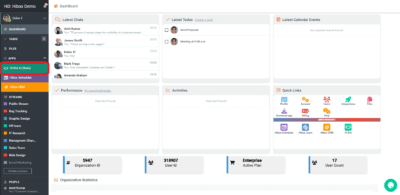
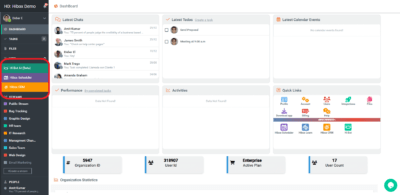
  2. The first way you can use Hi Bot, is by entering the Hi bot main tool, which can be found on the left side menu.  

  3. Go to the top left side menu, and click on “Hi Bot AI (Beta)”

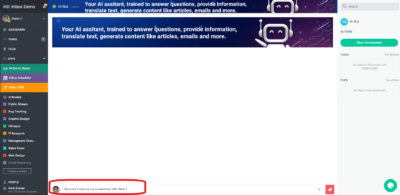
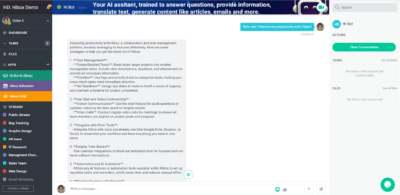
  4. Just like Chat GPT, you can ask anything you want to know. You can have
    a conversation just like any other conversation with another team member.


  5. Hi Bot assists users with many things, your imagination is the limit. It’s designed to make team coordination easier and more efficient, supporting businesses in maintaining organized and productive workflows.


  6. If you feel like starting an entire new conversation, just click on the “Clear Conversation” button on the right-side menu. 


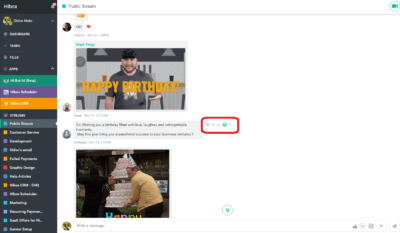
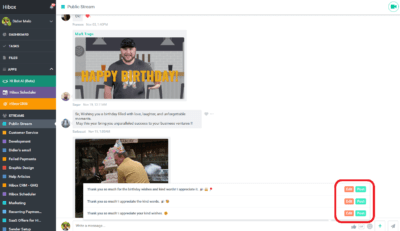
  7. The 2nd A.I tool Hibox offers is embedded in the conversation tools, on the right menu of each message. Hover your move over the message you want to reply to and click on the Hi Bot green icon to see possible responses.
  8. You will see the autogenerated responses at the bottom of your screen, you can now select the one you like the most to reply instantly.


  9. Click on “Post” to post the message right away, or click on “Edit” if you want to change that message and personalize it. 

  10.  
Hibox A.I CRM
Hi Bot A.IHi Bot A.I

Share This Article :

  • Facebook
  • X
  • LinkedIn
  • Pinterest

Was it helpful ?

  • Happy
  • Normal
  • Sad
Nonprofit Newsletter

Sign up to get a monthly newsletter with helpful tips for nonprofits and mission-driven stories that will warm your heart.

    Image link

    Say 'Hi' to software designed specifically for mission-driven organizations. Made with love by Hibox for Nonprofits.

    Company
    About Us
    Terms of Use
    Privacy Policy
    GDPR Policies
    Acceptable Use Policies
    Blog
    Nonprofit Software
    Program Management
    Volunteer Management
    Learning Management
    Board Management
    Project Management
    Nonprofit Training
    Training Catalog
    Helpful Nonprofit Tools
    Business Software
    Hibox Chat for Business
    Meeting Scheduler
    Business CRM
    Mobile Apps
    Contact Us
    Get Help
    Book a Demo

    © Hibox LLC. All rights reserved.

    Close
    Search

    Hit enter to search or ESC to close

      cookie By using this website, you agree to our cookie policy. Close